
An HDMI-output laptop needs an active HDMI-to-DisplayPort converter to feed a DisplayPort-input monitor. A DisplayPort-to-HDMI adapter is the opposite product, even if its plugs look suitable. Check the converter’s exact resolution, refresh rate and power instructions before buying.
Component documentation · Not physically tested by NYBreakingRead the connection from computer to screen
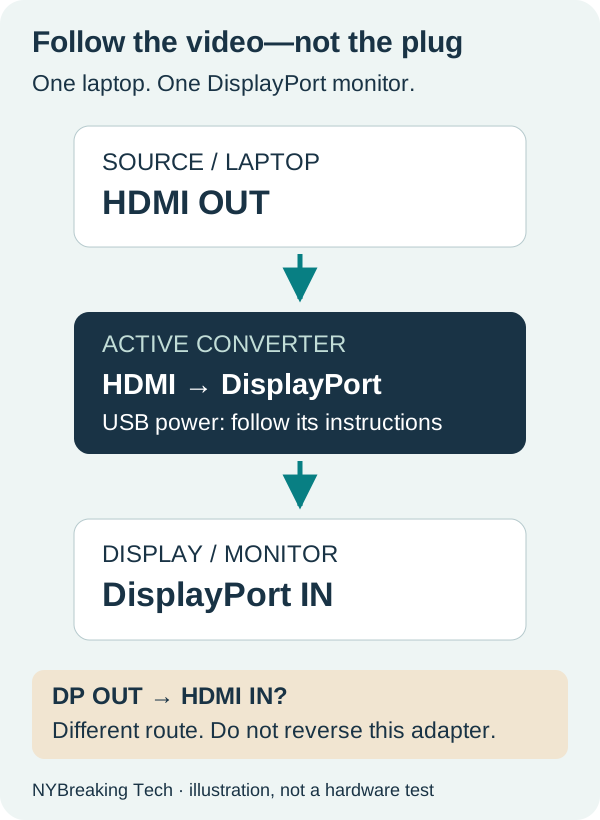
Write down which device sends the picture and which device receives it. For this guide, that means laptop HDMI OUT → active converter → monitor DisplayPort IN. Dell’s direction guide explains why HDMI-to-DisplayPort needs active conversion and why the reverse adapter cannot simply be turned around.
“Active” alone is not enough: active DP-to-HDMI adapters also exist. The listing must explicitly identify an HDMI source and a DisplayPort display. If the monitor has both DisplayPort IN and OUT, use the input. CableCreation’s CD0764 instructions make that input/output distinction explicit and specify a separate DisplayPort cable for its female output.
If the monitor has a suitable HDMI input, first check whether a direct HDMI connection already meets your need. If the laptop has a documented DisplayPort-capable USB-C port, compare that route too; our USB-C cable guide explains why charging support alone is not video evidence.
Two “4K” adapters, different buying decisions
These are manufacturer-documented examples, not tested recommendations. Match the complete product number; do not transfer a specification between similar-looking adapters.
| Model | Documented mode | Important boundary |
|---|---|---|
| 103069-BLACK | Up to 3840×2160 at 30Hz | Not designed for 4K60 or VRR; not recommended for DisplayPort KVM switches. Some 4K monitors may be limited to 1440p60 with this adapter. |
| 103099-BLK | Up to 3840×2160 at 60Hz | Listed for desktop/laptop computers; the current product heading excludes PS5 and Xbox Series X/S. |
Both run from HDMI source to DisplayPort monitor. The 30Hz model is not a substitute when your requirement is 4K60. The 60Hz model’s laptop specification does not override its console exclusion. A mode is only established for your setup when the source, converter, cable and monitor support it together.
Write the target as pixels and refresh rate, such as 3840×2160 at 60Hz. “4K,” a connector version or the monitor’s maximum refresh rate is not a complete purchase requirement. Keep HDR, variable refresh rate, audio and protected-video requirements separate until the exact model’s documentation confirms them.
The USB lead powers the converter—not a new display path
The USB lead on these HDMI-to-DisplayPort products supplies converter power. It does not make them the same thing as a driver-based USB graphics adapter. See DisplayLink versus native display connections if your intended product actually takes video through USB.
Power wording differs by model. ACT describes the AC7536’s USB-A power as optional when HDMI power is sufficient. CableCreation CD0764 specifies external USB-A power and highlights sources supplying less than 300mA. The 103069-BLACK page recommends connecting the included USB lead for stable operation. Follow the selected model’s instructions; do not infer that every active adapter either always needs, or never needs, external USB power.
Before ordering, confirm where that lead will connect and whether the required power source and DisplayPort cable are included. Do not treat an unused USB socket on a monitor as a verified power supply without checking the monitor’s instructions.
Fill in this worksheet before ordering
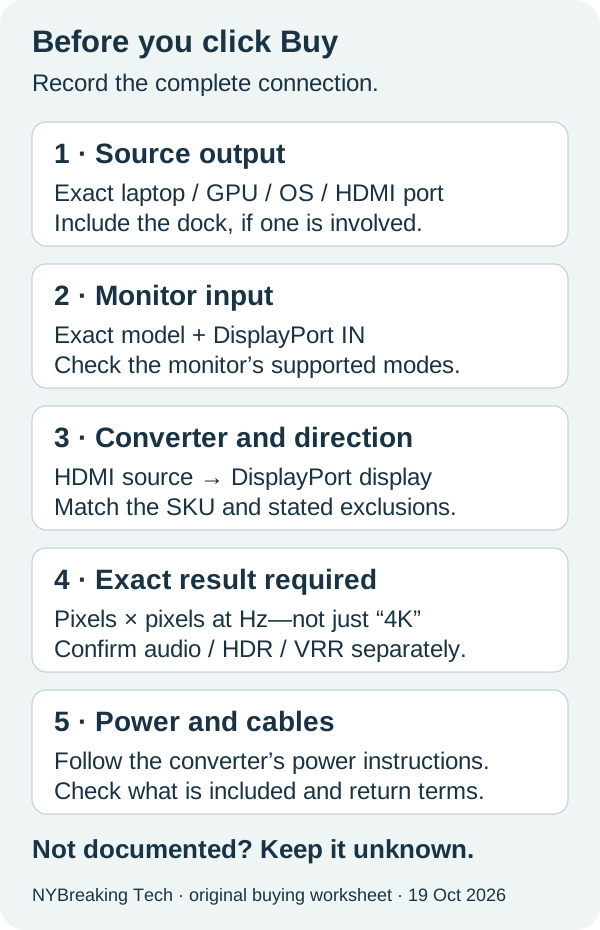
- Source: laptop model, chip/GPU, operating system, HDMI output and documented output mode. Include the dock model if HDMI comes from a dock rather than the laptop.
- Display: monitor model, DisplayPort input and its supported mode. Record any monitor-menu setting required by its manual.
- Converter: exact SKU, HDMI-input-to-DisplayPort-output direction, active conversion and any stated exclusions. A blank field means unknown, not compatible.
- Result needed: resolution and Hz, plus only the extras you need—audio, HDR, VRR or protected video. Ask about each unsupported or ambiguous requirement.
- Complete chain: power instructions, USB power source, DisplayPort cable and length, any additional equipment, and the applicable return terms.
Message to the seller: “My [laptop/chip/OS] sends video from [HDMI port or exact dock] to [monitor’s DisplayPort input]. I need [pixels × pixels at Hz] and [required extras]. Does [exact converter SKU] support this direction and mode with my equipment? Please link the specification, identify exclusions, and confirm the required power and included cables.”
Use the connection planner for equipment it covers. This worksheet does not add a tested or certified equipment combination to the planner.
After delivery, test the requirement you actually bought for
Keep the original working connection available. Follow the converter’s installation order, connect its documented power supply, and select DisplayPort on the monitor. Check the selected resolution and refresh rate in your operating system. A picture appearing is only the first check; confirm audio or other required features separately.
If there is no picture, recheck direction, power and the selected input before replacing more equipment. If the target mode is missing, compare the exact supported-mode statements at every stage. Record what works with the shortest documented chain before introducing a KVM, splitter or another converter. The HDMI splitter guide covers the separate question of independent desktops.
These are acceptance checks for you to perform. We did not connect hardware, measure latency, test sleep/wake reliability or verify a particular laptop–adapter–monitor combination. Manufacturer claims are documented evidence; unknown compatibility stays unknown. Prices and availability are outside this guide.
Evidence you can inspect
- Dell: HDMI and DisplayPort conversion direction
- Cable Matters 103069-BLACK: 4K30 adapter and limitations
- Cable Matters 103099-BLK: 4K60 adapter and exclusions
- ACT AC7536: model-specific USB power requirement
- CableCreation CD0764: input, output and power instructions
Additional manufacturer documentation reviewed 19 October 2026. These references support this guide; they do not create a tested finder result.
Put the conditions into your own setup.
Choose the exact equipment, then save or print the connection checklist.
Open the plannerFound a mismatch? Report a correction. No active paid affiliate links on this page.