
For a native USB-C monitor connection, buy a cable explicitly documented to carry video at the mode you need. A 240W charging label alone does not establish video support. Check the laptop’s video-capable port and the monitor’s video input as well; charging and a working picture are separate requirements.
Component documentation · Not physically tested by NYBreakingOne cable, two separate jobs
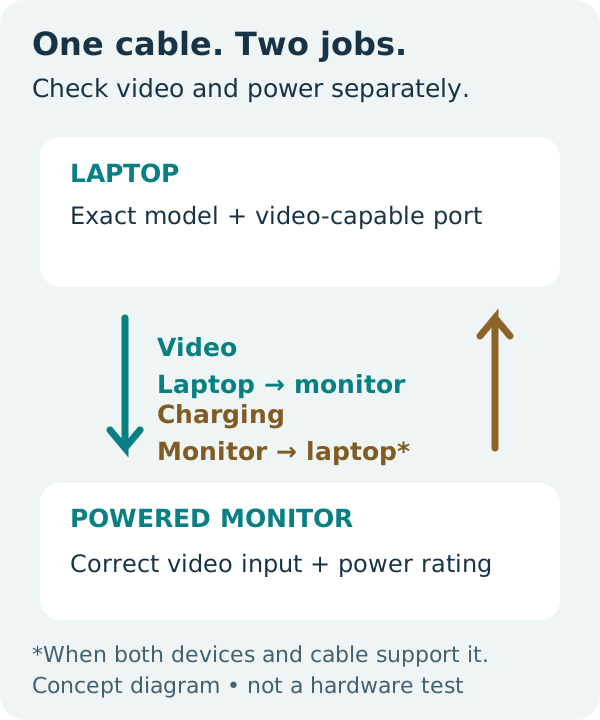
In a compatible single-cable setup, the laptop sends the picture to the monitor and the powered monitor can charge the laptop. VESA describes DisplayPort Alt Mode as carrying display output over USB-C alongside other USB-C functions. That capability is not present in every cable or every same-shaped socket.
A cable that charges the laptop but produces no picture may be doing exactly what its specification promises. Conversely, working video does not establish that the monitor supplies enough power for your laptop’s workload. If charging is the problem, use our USB-C monitor charging checks.
Three documented cables show the difference
The examples below compare Apple’s documentation, not our own measurements. They are not a recommendation to buy the most expensive cable.
| Cable and length | Charging ceiling | Documented video |
|---|---|---|
| Apple 240W USB-C Charge Cable, 2 m | 240W | No. Apple describes its USB-C Charge Cable as USB 2.0 data, without video support. |
| Apple Thunderbolt 4 Pro Cable, 3 m | 100W | Yes, for compatible Thunderbolt/USB-C displays; Apple specifies DisplayPort HBR3. |
| Apple Thunderbolt 5 Pro Cable, 1 m | 240W | Yes, for compatible Thunderbolt/USB-C displays; Apple specifies DisplayPort HBR3. |
Sources: Apple’s exact 2 m charge-cable listing identifies the 240W rating and USB 2 data; Apple’s cable comparison states the no-video limitation and the two Pro cables’ video and power capabilities. The linked Pro models are MW5H3AM/A (3 m, Thunderbolt 4) and MC9C4AM/A (1 m, Thunderbolt 5). Match the product and length, not just the brand.
The buying lesson is simple: a cable rated for more charging power can support less video functionality. The maximum wattage is a cable capability, not a promise that your monitor will deliver that power. Nor does this table certify a particular laptop, display resolution, refresh rate or multi-monitor arrangement.
Read the specification behind the label
USB-IF’s cable-label guidance separates power and data-rate markings. It explicitly allows USB 2.0 USB-C cables with 60W or 240W power labels; their 480Mbps data capability is not required to appear in those charging logos. A watts-only marking therefore leaves the video question unanswered.
Look up the exact cable’s official page for an explicit display claim, supported connection type, length and any direction restrictions. Then check that claim against the equipment manuals. A connector photograph, a “fast charging” description or a data-rate number by itself is not your complete display specification.
Do not infer that an unmarked cable is unsafe or that every Thunderbolt cable has the same power ceiling. If its model cannot be identified, keep its display capability unknown. The cable supplied for the monitor’s video input is a useful starting point when you still have it and its intended role is documented.
A buying checklist you can send to the seller
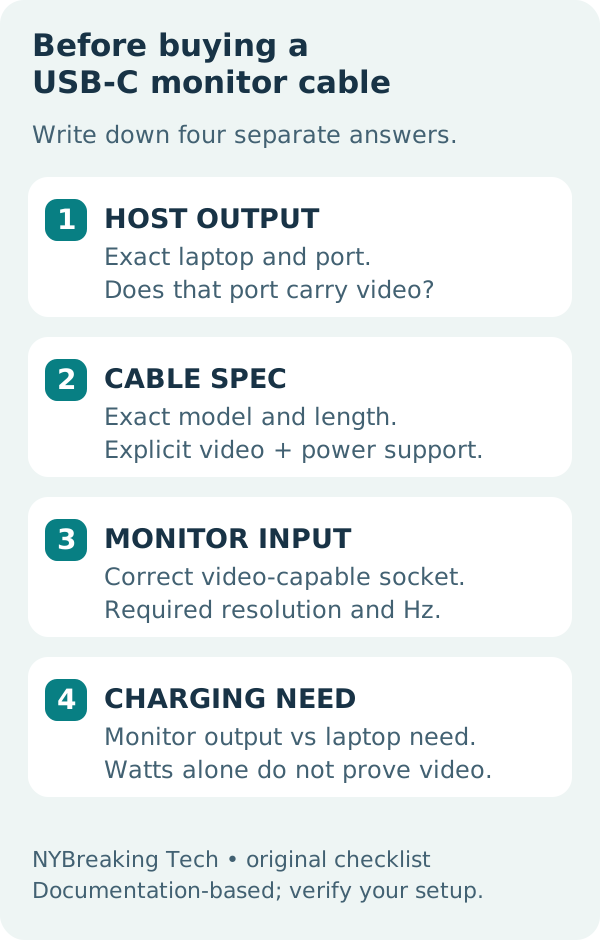
- Laptop: record the exact model and chip, operating system, and port you intend to use. Find explicit video-output support in its manual. A charge-only or data-only port is not converted into a native display output by buying another cable.
- Cable: record its exact product number and length. Require an explicit video/display statement that covers your connection and desired mode. Check power separately. Do not copy specifications from a shorter or differently named variant.
- Monitor: record its exact model and video-capable USB-C or Thunderbolt input. Other USB-C sockets may have a different role. Note the desired resolution and refresh rate, plus any HDR or other mode you actually need.
- Charging: compare the monitor’s documented laptop power output with the laptop’s requirements and the cable’s rating. If adequate charging is not established, retain the supported laptop power supply rather than assuming the cable will fix it.
Copy this request: “I want to connect [exact laptop/chip/OS] from [port] directly to [monitor/input] at [resolution/Hz]. The cable must be [length]. I also need [documented laptop charging requirement]. Please confirm the exact cable SKU supports both jobs and link its specification.”
For a dock between the two devices, check both cable segments and the dock’s port roles. The USB-C versus Thunderbolt guide explains the broader connection types. Use the connection planner for equipment in its coverage; an unlisted cable or combination does not become verified through this checklist.
Check the result before keeping the cable
After connecting the documented ports and selecting the monitor’s input, confirm the actual resolution and refresh rate in the operating system. Test the setup in the lid and power state you intend to use, then check charging under your normal workload. Keep the packaging and return terms until you know the setup meets your needs.
If charging works but the screen is blank, recheck the cable’s video statement, laptop output and monitor input before buying more power capacity. If the picture works but charging is weak, troubleshoot the power path separately. These are acceptance steps for you to perform, not results from NYBreaking’s hardware testing.
This guide covers native display connections. Driver-based USB graphics adapters are a different route; see the DisplayLink comparison rather than applying a native-cable rule to every USB video product.
Evidence and limits
Manufacturer and standards-body documentation checked 18 October 2026. We did not physically test these cables or measure charging, image quality, sleep/wake behavior or durability. Prices, stock and exact laptop–monitor combinations are unverified. The illustrations are original explanations; no vendor certification logos or product photographs have been reproduced.
Related checks
Evidence you can inspect
- Apple: Thunderbolt Pro cables, video and charging limits
- Apple: 240W USB-C Charge Cable, 2 m
- USB-IF: cable power and performance label rules
- VESA: DisplayPort over USB-C
Additional manufacturer documentation reviewed 18 October 2026. These references support this guide; they do not create a tested finder result.
Put the conditions into your own setup.
Choose the exact equipment, then save or print the connection checklist.
Open the plannerFound a mismatch? Report a correction. No active paid affiliate links on this page.