
A normal HDMI-in, two-HDMI-out splitter repeats one picture on both external monitors. It does not create two independent external desktops. A product sold as an “HDMI splitter” may instead connect to USB and use graphics software, so check its input connector and driver requirements before buying.
Component documentation · Not physically tested by NYBreakingThe three pictures that matter
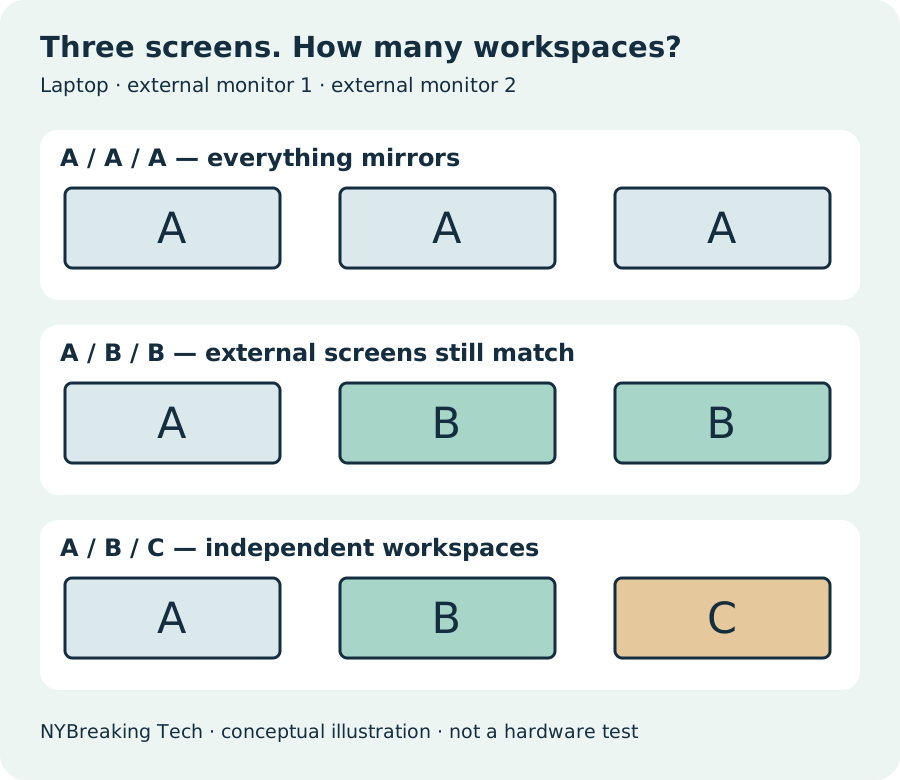
A / A / A: the laptop and both external screens show the same content. A / B / B: the laptop has one workspace and both external monitors share another. A / B / C: each external screen is independent of the other and of the laptop.
The middle arrangement is the buying trap. It extends beyond the laptop panel, but it does not give the two external monitors different workspaces. For example, CABLETIME’s CP36G page explicitly describes AAA and ABB while excluding ABC. Its USB-C socket supplies power; the video input is HDMI. This is a documented example, not a product recommendation or a test result.
Check what plugs into the computer
Microsoft explains that a splitter copies one signal rather than creating independent signals. Changing Windows to Extend cannot turn that copied signal into two separately controlled outputs.
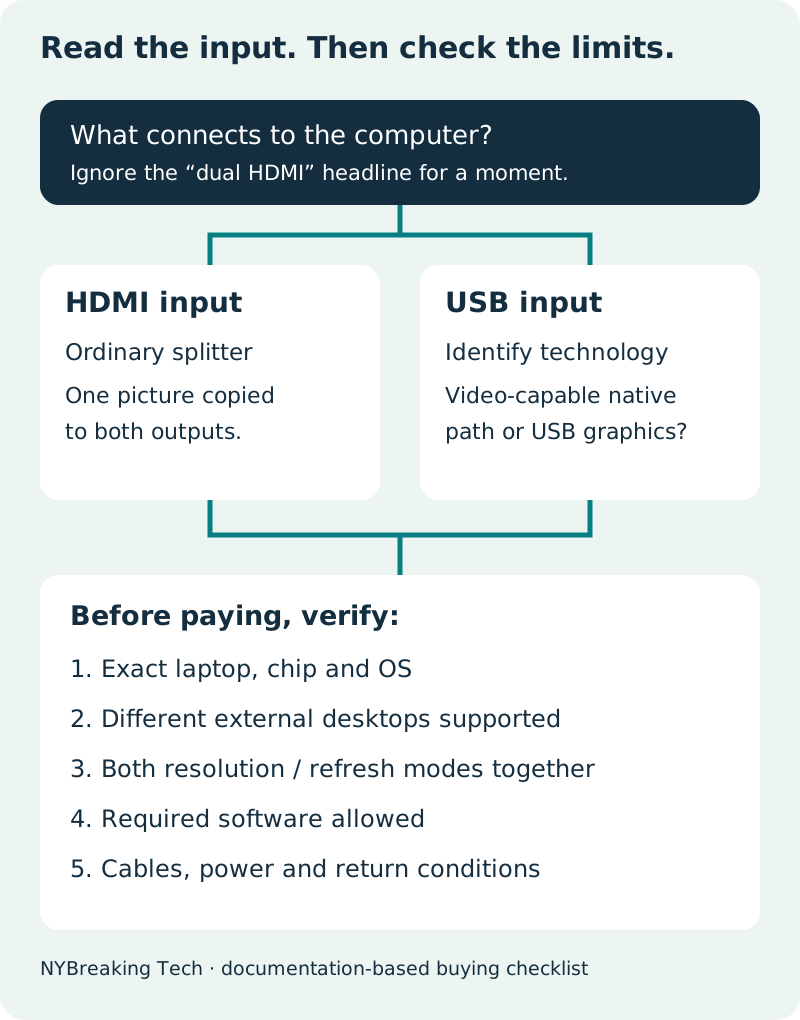
Inspect the product’s host input, not only its two HDMI outputs. OREI’s USBC2HDMI2 SplitExtend connects through USB-A or USB-C and requires a Silicon Motion driver. The manufacturer lists one output up to 4K at 30 Hz and a second up to 1080p at 60 Hz, no laptop power delivery, and a productivity rather than gaming focus. That is a USB video adapter, not proof that splitting the laptop’s HDMI signal creates another desktop.
Do not install DisplayLink software for a Silicon Motion device merely because both use USB. Match the actual model’s official driver, supported OS version and permission requirements. A managed work laptop may not allow installation.
Choose a route for your actual laptop
First look for two supported native display connections. One HDMI output plus a second video-capable USB-C connection may avoid a splitter entirely. The laptop still needs to support both screens at your chosen settings. Our USB-C versus Thunderbolt guide explains why a socket’s shape is not its specification.
For a Mac, identify the exact chip, model and OS before choosing a dock. Apple’s display setup documentation directs you to model-specific display support and resolution/refresh limits. A dock does not automatically add native display capacity. Start with the relevant M1/M2 Air or M3 Air guide, rather than applying a rule for a different generation.
If native connections cannot satisfy the request, investigate a supported USB graphics device and its software trade-offs. Our DisplayLink guide covers that separate path. A device with multiple HDMI sockets is not sufficient evidence of independent Mac displays.
A five-field checklist before you pay
- Desired picture: write “different apps on external monitor 1 and external monitor 2,” not just “dual monitors.” Decide whether the laptop panel must stay active.
- Host: record the exact laptop/chip, OS version, available video-capable ports and intended lid/power state.
- Accessory: copy the model number, host-input type and video technology from its official specification. Separate USB power input from USB video/data input.
- Both outputs together: record each monitor’s model, input, resolution, refresh rate and cable. Ask whether the advertised modes apply simultaneously—not only with one screen attached.
- Restrictions: confirm required software is allowed, charging is adequate, and your important applications are supported. Save the manufacturer’s answer and the seller’s return conditions.
Example requirement: “Windows 11 laptop, lid open; two external screens with different documents; each 1920 × 1080 at 60 Hz; no third-party graphics driver allowed.” This is a request template, not a tested setup. It immediately rules out a mirror-only splitter and flags driver-based products for your IT policy check.
Use the connection planner for equipment within its coverage. An unknown combination stays unknown; this guide does not add new certified hardware combinations.
Already bought a splitter? Diagnose before replacing anything
If the external monitors match each other while the laptop differs, you probably have the ABB arrangement—not necessarily a fault. Check the accessory’s documented topology first.
If the device is documented to expose independent displays, confirm its supported driver and OS settings. On Windows, try Windows + P → Extend; on a Mac, inspect System Settings → Displays. Test each monitor and cable separately if one stays blank. Microsoft’s troubleshooting steps help separate cabling and graphics limits from software configuration.
Do not buy a higher-wattage power supply, an HDMI switch or an expensive cable expecting it to create a second desktop. Fix the connection architecture first. An HDMI switch selects sources; it is not evidence of another independent display output.
What this guide establishes—and what it does not
Reviewed 17 October 2026 using manufacturer documentation. Product examples demonstrate input and output distinctions only. No hardware was purchased or physically tested; gaming performance, sleep/wake reliability, pricing, stock and your exact combination remain unverified. The illustrations show concepts, not real product ports or test screenshots.
Evidence you can inspect
- Microsoft: external-monitor troubleshooting
- Apple: connect displays to your Mac
- OREI: USBC2HDMI2 input and Silicon Motion driver requirements
- CABLETIME: CP36G AAA/ABB modes, not ABC
Additional manufacturer documentation reviewed 17 October 2026. These references support this guide; they do not create a tested finder result.
Put the conditions into your own setup.
Choose the exact equipment, then save or print the connection checklist.
Open the plannerFound a mismatch? Report a correction. No active paid affiliate links on this page.